A website launch is the beginning of its operating life, not the end of the work. Pages, forms, software dependencies, staff responsibilities and customer expectations change over time. A practical maintenance plan makes those changes visible, gives someone responsibility for checking them and provides a way to recover when something goes wrong. It also keeps the website connected to the work it is meant to support: helping people understand an offer, complete a task or contact the right person.
This guide is for owners and teams who need a clear, proportionate way to care for a business website. It explains what to review weekly, monthly, quarterly and after a significant change; how to assign responsibility; which tests are worth recording; and how to choose the right maintenance support. It is a planning framework, not a promise that every platform has the same controls or that a checklist alone can guarantee security, accessibility, performance or search visibility. Adapt it to your hosting, content system, integrations and risk.
1. Start with the outcome the website must keep delivering
Before choosing tasks, write down what the website is for today. A service website may need to explain scope, help a visitor compare options and deliver enquiries to a monitored inbox. An online store may need to present products, take orders and show accurate fulfilment information. A portal may help customers submit documents or review a status. Maintenance should protect these real journeys. A green uptime indicator cannot tell you whether the main form works, a booking can be completed or an important page still answers the question customers ask.
List the few journeys that matter most and describe their start and finish in plain language. For example: “A prospective client finds the website on a phone, understands our website service, sends an enquiry and receives a confirmation.” Include the operational step after submission. A form that appears successful but sends to an abandoned mailbox is not a working journey. The same is true when a portal stores a file but nobody owns the review queue. Include the people and systems beyond the screen.
Assign a practical importance level to each journey. Consider the effect of failure, the number of people affected, whether a workaround exists and how quickly the team would need to know. A brochure page with a minor spacing issue is not equivalent to a broken checkout or a login that exposes another customer’s record. This simple priority helps the team decide what deserves immediate alerts, what belongs in a monthly review and what can wait for the next planned content update.

2. Name an owner, a backup and a boundary for every task
Maintenance falls through the cracks when “the team” is responsible but no one has the time, access or authority to do the work. Create a small ownership list that names the primary person, a backup and any outside provider for each responsibility. The owner might approve page changes; a developer might update the code; the hosting provider might operate infrastructure; and a marketing partner might check analytics. A single person can hold several roles, but the responsibilities should still be written down separately.
Define each provider’s boundary. Who monitors uptime? Who receives security alerts? Who restores a backup? Who can approve changes to the homepage? Who checks that an enquiry reached the business? These are different jobs, and the answer may involve more than one supplier. A maintenance agreement should state what is included, how requests are submitted, how urgent issues are handled, what the response commitment means and which tasks remain with the owner. Avoid assuming that “hosting” automatically includes application updates, content edits, backups or recovery work.
Record how to reach the right person when the primary owner is away. Store access details in an approved password manager rather than an email thread or a shared document visible to everyone. Revisit ownership when staff or vendors change. Remove access that is no longer needed and transfer the relevant service accounts before an employee or supplier relationship ends. Continuity is part of maintenance: an otherwise healthy site becomes difficult to operate when nobody knows who owns the domain, analytics, content system or recovery credentials.
3. Keep a simple inventory of the site and its dependencies
A useful inventory does not need to describe every line of code. It should help an owner understand what the site depends on and where to look during a problem. Record the public domains, hosting account, content system, theme or application framework, important plugins or packages, analytics property, form destination, email delivery service, payment provider and any scheduling, CRM or customer-data connection. For each item, note the business owner, technical contact, renewal date if applicable and the process for changing access.
Identify which parts are critical and which are replaceable. A temporary campaign banner can usually be rebuilt. A database of orders or customer requests may be irreplaceable. Understand where data is stored, who can access it, how long it is retained and what export or recovery options exist. This is operational planning, not a substitute for a privacy review or a formal security assessment. If the website collects sensitive, regulated or payment information, the owner should obtain qualified guidance for the specific obligations and architecture.
Note the systems that sit outside the site but affect its behaviour. A DNS change can make a perfectly healthy deployment unreachable. An email provider can reject a form notification while the site continues to show a success message. A third-party script can fail or slow a page. A booking API can change its authentication requirements. Keep the inventory useful by recording dependencies that could interrupt a key visitor task, rather than adding technical details nobody will maintain.
4. Make backups recoverable, independent and understandable
A backup is a copy of the information and files needed to restore the service. Its value depends on whether it includes the right data, is stored separately from the system it protects, can be accessed during an account problem and can actually be restored. A backup job that reports “success” is only one signal. It does not prove that every required database table, uploaded file, configuration value or encryption key is present or that the recovery steps still work.
First identify what must be recoverable: site files, content database, uploaded media, configuration, DNS settings, application secrets, order records or a list of dependencies. Different platforms handle these items in different ways. A static site may be reproducible from its source repository and deployment configuration, while a content-managed site may require both its database and its uploaded files. Document the recovery source and the person authorized to use it. Do not place sensitive recovery credentials in the same broadly shared folder as the public website content.
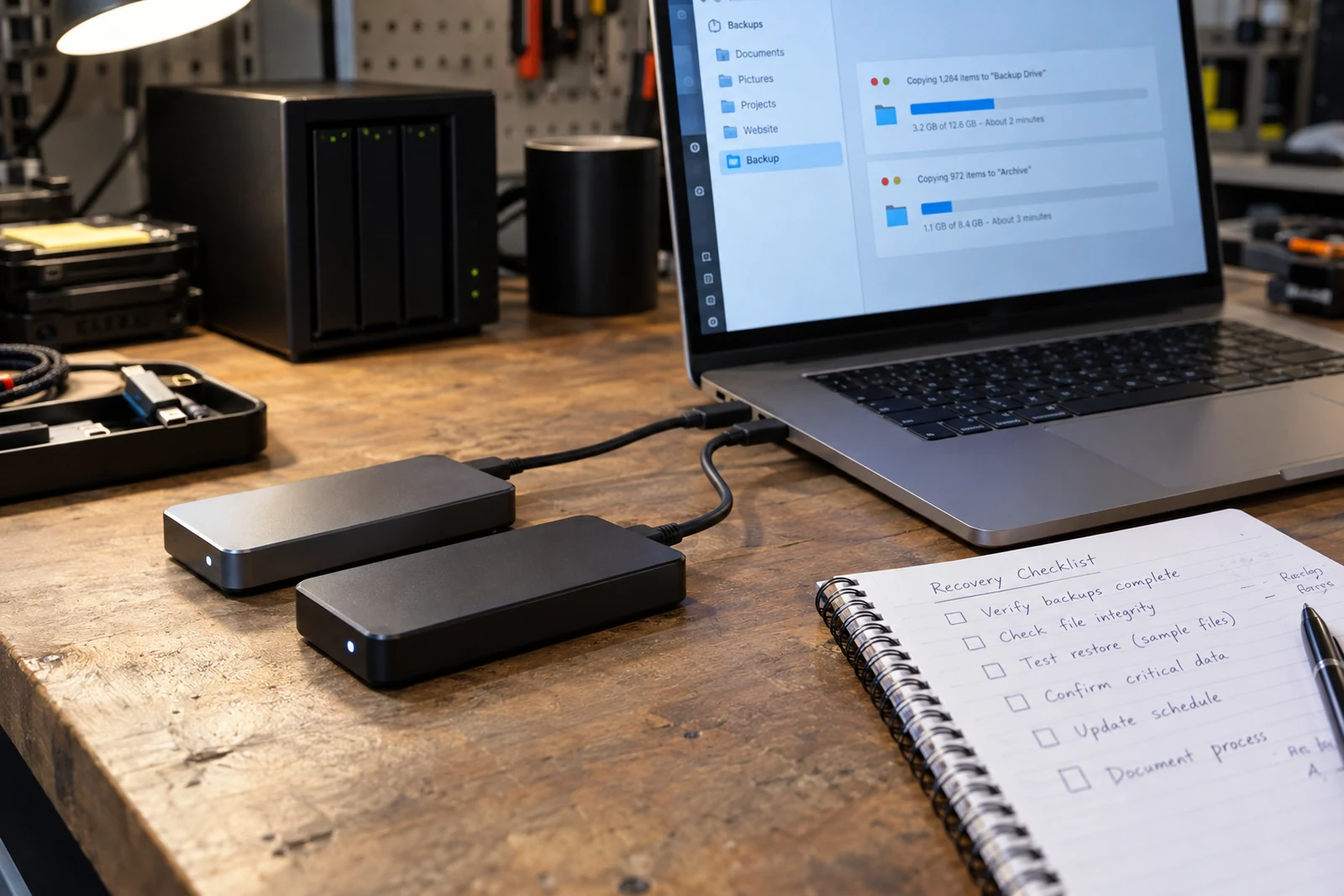
Choose a schedule that reflects how frequently important information changes and how much data the business could afford to recreate. Then test a restore in a safe environment on a planned cadence. Confirm that pages render, forms can be configured and essential data is present; do not use live customer data in a test copy unless the environment and access controls are appropriate. Record the test date, what was restored, what was missing, how long it took and the follow-up owner. A restore rehearsal turns a theoretical safety net into a process people can follow.
5. Update software with a review and recovery path
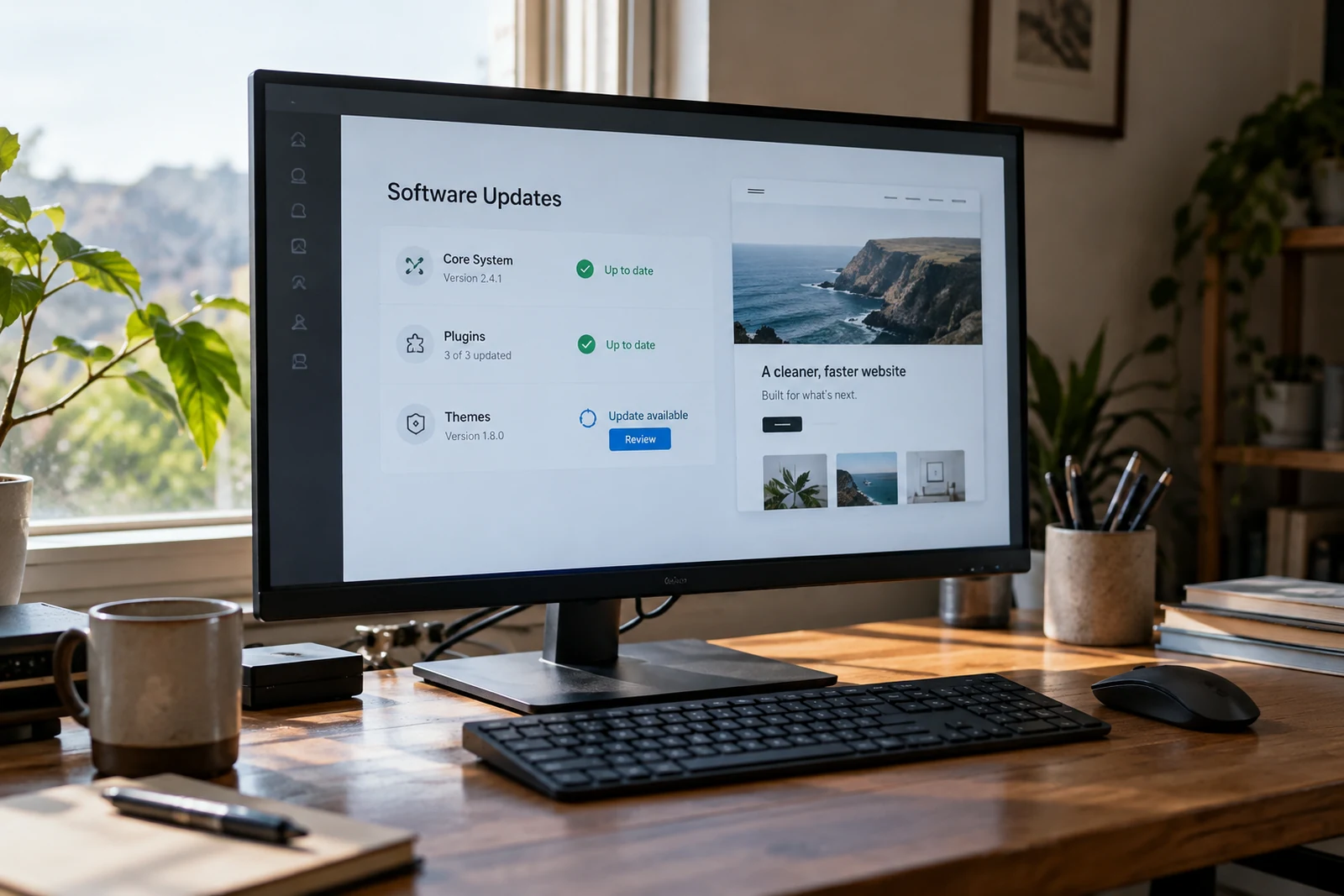
Software updates can include security fixes, compatibility changes, new features or behaviour changes. Leaving every dependency untouched can increase risk, while applying changes without checking the result can interrupt the site. A sensible process records what is installed, watches for relevant updates and gives the team a safe way to evaluate higher-impact changes. The exact controls depend on the hosting and platform. Some managed services apply infrastructure updates; others expect the site owner or developer to maintain application code and plugins.
Before an important update, review release information, check compatibility notes and confirm that a recent recovery point is available. Where a staging environment exists, test the update there first. Exercise the journeys affected by the change: navigation, search, sign-in, forms, checkout, uploads, integrations and mobile layout as applicable. If the site has no staging environment, consider whether the change can be scheduled during a lower-impact period and whether a tested rollback route exists. A short change record helps the next person understand what changed and why.
For a WordPress site, use the platform’s documentation for its update process and backup precautions; do not apply WordPress-specific instructions to an unrelated application. Keep plugins and themes to those the site needs, and check whether a plugin is maintained and compatible before relying on it for an essential task. Removing unused extensions can reduce clutter, but deleting software without checking dependencies can break a live feature. Document the decision and validate the affected pages after the change.
6. Check access, identity and account ownership
List the people and service accounts that can administer the website, domain, hosting, analytics, forms, customer records and deployment pipeline. Review the list periodically and after role changes. Use named accounts where the platform supports them, grant only the access required for the task and remove access that has expired. Shared administrator credentials make it difficult to identify who made a change and complicate a handover when someone leaves.
Enable the account protections supported by each provider, such as multi-factor authentication, recovery codes or organization-level access controls. Keep recovery methods current and accessible to an authorized backup owner. Test whether the person responsible can still sign in before an urgent incident rather than discovering a lost recovery phone after an outage. Never paste passwords, private keys or customer information into a blog, issue tracker or support request unless the tool and process are approved for that information.
Access reviews should include third parties and automation. A form integration, analytics tag or deployment token may have permissions that outlive the original setup. Understand what an integration can read or change, where its credentials are stored and how to revoke them. If a vendor needs temporary access, agree on the scope and the end date. This is not merely a cybersecurity task: a clear access map also helps the business preserve ownership of its domain, content, analytics and customer communication channels.
7. Test every way a visitor can contact or transact
Forms, booking links, phone numbers, chat widgets, payment steps and mailto links are business functions. Check that a visitor can find them, understand what will happen and complete the action with a realistic device and input. For a contact form, test both a valid submission and a useful validation error. Confirm that the message reaches the intended inbox, that the reply-to address behaves as expected and that someone is assigned to monitor the queue. If a confirmation is shown, make sure it describes the actual state.
Use a controlled test record that can be identified and removed. Do not send repeated test orders through a live payment gateway or submit fake leads that confuse the sales team. If the integration has a test mode, use it. If not, coordinate with the owner, label the test clearly and verify that any generated notification or record is cleaned up safely. The test should include the operational handoff: who sees it, what action follows and whether an error notification reaches the right person.
Check the journey from outside the organization’s network when practical. A form that works for a signed-in staff member may fail for a visitor, a mailbox filter may quarantine an automated notification, or a third-party cookie policy may alter a widget. On mobile, verify that controls are reachable, field labels remain visible and the keyboard does not obscure the next step. Keep a date and result so that a future issue can be compared with a known-good test.

8. Review the pages customers rely on
Pick the pages that carry important information: service descriptions, pricing or quote instructions, operating hours, contact details, policies, locations, project examples and the main landing pages. Review names, dates, links, images and next steps. Confirm that every statement is still accurate and that the page has an owner who can approve changes. This is especially important when a service has changed or a business has moved its domain, email, booking tool or support process.
Read the page as a customer who does not know the company’s internal shorthand. Can the visitor tell who the service is for, what work is included, what information is needed to begin and what happens next? Replace vague claims with a specific description that the business can support. Remove outdated offers, old staff references and placeholder copy. A page can be technically available yet create confusion because the content no longer matches the actual process.
Use real visitor questions to guide revisions. Search the enquiry inbox, sales calls, support logs and internal training notes for repeated questions, while handling personal information appropriately. If several visitors ask about the same scope boundary, add a clear explanation to the relevant page and link to a deeper guide only when it genuinely helps. Do not turn every question into a new page. A focused, maintained page is often easier to use than multiple thin pages competing to answer the same query.
9. Maintain search discoverability without chasing every signal
Technical discoverability depends on a chain of conditions: the page is public, crawlable, returns an appropriate response, has a clear canonical address, can be understood and offers useful content. A sitemap can help search engines discover URLs, but it does not compel them to index or rank every page. Keep the sitemap limited to the preferred public pages. Check that retired URLs redirect to relevant replacements or return an appropriate not-found response, and remove internal links that still point to obsolete addresses.
Review page titles, descriptions, headings, internal links and structured data when substantial content changes. Titles and descriptions should summarize what the visitor will find, not stuff every keyword variation into one string. Internal links should name the destination clearly. Structured data should describe visible, truthful information and should not invent reviews, services, locations or results. If a page is intentionally private or not useful in search, use the appropriate access and indexing controls rather than relying on an unlinked URL to remain secret.
Use Search Console to see Google’s view of discovery, indexing and search performance. The report’s figures and labels can take time to update, and a successful live inspection does not prove that a page has entered the index. Track the patterns that matter: which pages receive impressions, which queries produce relevant visits, whether important pages are excluded and whether clicks change after a substantive edit. Treat a crawl notification as a request to inspect, not a ranking shortcut. See our technical SEO service for help checking the site structure.

10. Treat accessibility as continuous quality work
Accessibility is easier to maintain when it is part of content, design and release work instead of a one-time scan. Start with the actions visitors need to complete and check whether they can use the pages with a keyboard, understand headings and labels, identify links, read text at useful sizes and receive clear error messages. Review new images, video captions, documents and interactive controls as they are added. The appropriate standard and legal requirements depend on the organization and its context; this guide does not certify compliance.
Automated checks can identify some patterns, such as missing labels or low contrast, but they cannot determine whether a page’s meaning is understandable or whether a complete task works with assistive technology. Pair automated checks with manual review. Navigate without a mouse, zoom the page, inspect form errors, listen with a screen reader where you can, and involve people with disabilities when the project and resources permit. W3C WAI recommends planning, assigning responsibilities, reviewing websites and continuing to monitor the work.
Prioritize barriers by their effect on the task and the number of people blocked. A missing form label may prevent someone from submitting an enquiry; a small decorative alignment issue may not. Record the affected page, user impact, temporary workaround, owner and planned fix. Verify the correction in the context where it occurs rather than relying only on the scanner’s green result. If the team cannot resolve a barrier promptly, communicate an accurate alternative route while the fix is planned.

11. Measure performance on important pages and real devices
Performance work should begin with the pages and tasks that matter, not a single score from an arbitrary test. Review the homepage, major service pages, enquiry flow, product catalogue or portal task on a representative phone and connection. Observe whether text appears promptly, images shift the page, buttons respond and the next action is clear. Compare repeat tests under similar conditions before attributing a change to a code release or a third-party script.
Investigate large images, unnecessary scripts, fonts, embeds and slow server responses. Choose image dimensions suited to the layout and avoid sending an enormous original file to a small screen when a smaller version is sufficient. Load below-the-fold media only when appropriate, while keeping the main visible image available quickly. Remove or replace third-party tools that add complexity without serving a current need. Before changing the delivery setup, confirm that consent, analytics and accessibility behaviour remain correct.
Field measurements and laboratory tests answer different questions. A lab test provides a repeatable snapshot under chosen conditions; field data reflects experiences collected from actual users, where available. Neither measurement alone tells you whether a page solves the visitor’s problem. Use performance reports to find likely bottlenecks, then test the repaired page and the full journey. Google’s Core Web Vitals are a set of user-experience measures; they should be interpreted alongside content usefulness, task completion and the circumstances of the audience.
12. Review analytics and tracking as business operations
Analytics is useful when the team knows what it is trying to learn. Decide which actions matter: submitted enquiries, completed bookings, product purchases, calls or successful portal tasks. Then check that the event is recorded at the right point and does not count a page reload or an internal test as a conversion. If tracking changes, write down the date, implementation and expected behaviour so that later comparisons are not mistaken for a sudden change in customer interest.
Compare Search Console and analytics carefully. Search Console describes activity before a visitor arrives from Google Search, while analytics describes interactions on the site. Clicks and sessions are calculated differently and should not be expected to match exactly. Review trends by landing page and query, and segment out internal traffic or test activity where the tools support it. Avoid collecting personal information in analytics event names or URLs unless a documented, compliant design explicitly permits it.
Review consent and disclosure alongside instrumentation. A tag that worked technically may no longer match the site’s privacy notice or the choices presented to visitors. Confirm that tags fire as intended under the applicable consent state and that a visitor can reach the privacy information. The right design depends on jurisdiction, configuration and business practice, so consult qualified privacy counsel for legal determinations. Maintenance should flag a mismatch to the responsible owner instead of assuming a generic banner resolves it.
13. Check external services and integrations
List each integration that affects a customer journey and test the boundary between systems. Does a booking tool display the right availability? Does a form create a record in the CRM? Does a payment status update after the provider responds? Do calendar invitations use the current meeting details? Monitoring only the website’s own response time will not reveal a failure in an external service or a disconnected credential.
For each integration, identify the responsible provider, the data exchanged, the error behaviour and the recovery owner. Read service notices from the vendor when the workflow is important. Avoid exposing API secrets in browser code or public repositories. Where a token expires or requires rotation, document a change process and test it before the deadline. If the provider offers a sandbox, use it for representative checks. If not, develop a controlled operational test with the provider or developer.
When an integration is unavailable, the visitor needs a truthful state. A page should distinguish “request received” from “booking confirmed,” or “payment processing” from “payment complete.” Provide a recovery path such as retrying safely, contacting support or saving a request for later. The design should avoid duplicate transactions when a user retries after an uncertain response. These cases are worth discussing during the original build and revisiting after providers change their API or terms.
14. Build a maintenance calendar around risk and change
Not every check belongs on a daily list. Match frequency to the cost of a failure, how quickly the underlying information changes and how easily a person can verify the outcome. A small brochure site may need a lightweight weekly check of important forms and a monthly review of updates, backups and content. A store or customer portal may need more frequent transaction monitoring and stronger alerting. Set a cadence that someone can actually follow and revise it when the site or business changes.
Use event-triggered checks as well as calendar reminders. A domain transfer, new payment provider, form redesign, content migration, analytics change, authentication update or deployment should trigger a focused review of the affected journey. A new campaign landing page should be checked before advertising begins. A staff departure should trigger an access review. A security advisory should trigger a risk-based response. This keeps maintenance relevant to the work rather than encouraging a ritual of ticking boxes without inspection.
Keep a short record of findings. A useful maintenance log includes the date, site area, action, result, open issue, severity and owner. It does not need to become a report that consumes more time than the work. A concise record makes it possible to see recurring faults, verify whether an issue returned and communicate what was checked. If the website supports a high-impact service, add an escalation route for urgent problems and ensure the person on call can access the needed diagnostics.

15. Use a practical monthly review, not a giant checklist
A monthly review can be short if it has clear scope. Begin with a few questions: Can a visitor complete the main task? Did any important form or integration fail? Are there security or update notices that require action? Is a recent backup available, and is the next restore test scheduled? Did an important page become outdated? Are any alerts, access permissions or renewals approaching? Record “not applicable” when a check genuinely does not apply, rather than leaving ambiguity.
Then inspect the signals that could reveal a developing issue. Review uptime and form-delivery alerts, search or analytics trends, broken-link reports, customer feedback and support requests. Look for changes over time instead of treating a single spike as proof. A sudden decline in enquiries might result from a campaign ending, seasonal demand, a broken form or an analytics configuration change. Compare the evidence across the journey before deciding what to fix.
Close the review by creating only a manageable number of follow-up actions. Give each one a named owner, expected result and review date. Separate urgent defects from improvements that can be scheduled. If the same action remains open for several months, reconsider its scope, priority or resource requirement. Maintenance succeeds through visible follow-through, not through producing a long spreadsheet that nobody uses.
16. Make incident response understandable before an incident
Write down what counts as a site incident for your organization. It could be a site outage, unavailable enquiry route, suspicious access, misdirected customer data, repeated payment failure or an incorrect public notice. The person who notices the issue should know where to report it, how to preserve useful evidence and who can approve a public change. A short runbook is better than relying on memory when the team is under pressure.
Separate the first response from the final repair. The first step may be to contain an issue, inform the responsible provider, disable a broken integration or show a temporary notice. The repair may require a code change, account recovery, data correction or provider investigation. Keep a factual timeline of what happened and what was changed. Avoid deleting logs or making repeated ad hoc edits that erase clues before the technical owner can assess them.
Decide in advance who communicates with customers and who approves that message. A notice should be accurate, use plain language and give the next update or workaround when possible. Do not make claims about the source, scope or impact of a security event before the investigation supports them. For incidents involving personal or regulated data, use the organization’s formal response plan and qualified legal/security advice. A website maintenance checklist is not a substitute for incident response expertise.
17. Maintain content, links and ownership during redesigns
A redesign is a maintenance event that can affect page addresses, search visibility, analytics and customer journeys. Before changing the design or platform, inventory important URLs and content, identify which pages should remain, and map changed addresses to relevant replacements. Update internal links, navigation, canonical tags and the sitemap after launch. Do not redirect every retired URL to the homepage when the destination is unrelated; visitors and search engines need an appropriate replacement or a clear not-found response.
Preserve source images, original copy and project information only when the business has the rights and a clear reason to keep them. Record whether a case study reflects real delivered work, an illustrative concept or a public reference. Accurate labels protect the visitor’s understanding and help future editors avoid turning a visual sample into an unsupported client claim. Review forms and integrations as well as the visible pages; a redesign may leave the old navigation intact while breaking its underlying enquiry route.
After the new site is live, compare the intended page list with the sitemap and run representative links on mobile and desktop. Check redirect chains, page titles, descriptions, structured data, image alternatives and key conversion events. Monitor search and analytics reports after the release, but allow for reporting delay and normal demand variation. If an issue appears, narrow it to an affected page group or journey, inspect the live URL and correct the specific cause.
18. Decide when in-house care is enough and when to ask for help
A small team can handle many routine tasks when the platform is well documented, the risk is modest and a person has the time and access to perform the work. Internal ownership can be especially effective for updating service details, reviewing forms, maintaining content and coordinating vendors. The key questions are whether the work is understood, whether the owner can verify the result and whether an escalation path exists when the task exceeds their experience.
Get specialist help when a problem involves a security event, a complex integration, a significant data migration, production code, unreliable recovery or requirements the team cannot confidently interpret. Ask the provider to explain the scope in plain language, describe the verification method and identify any remaining responsibility for the business. A recommendation should account for your actual site architecture and operational constraints instead of selling an identical package to every organization.
For a maintenance agreement, clarify what is monitored, what is excluded, how changes are approved, how urgent requests are prioritized, who owns source files and credentials, and what happens when the agreement ends. Ask how backups and restores are verified and how work is documented. Confirm whether a quoted response time means acknowledgement, diagnosis, mitigation or complete resolution. These distinctions let you compare providers on the support your business really needs.
19. A starter checklist you can adapt
Use this as a first draft, not a universal standard. Each checked item should have a clear result and an owner. Weekly: review priority alerts; test the highest-value contact or transaction path when a recent change or observed issue justifies it; confirm that urgent customer messages are being handled. Monthly: review updates and dependency notices; verify the latest backup status; spot-check key pages, links, forms and mobile behaviour; review analytics and Search Console trends; confirm that access and renewals remain current.
Quarterly: perform a documented restore test where feasible; review site ownership and third-party access; check a broader sample of accessibility and content issues; confirm integration error handling; evaluate whether the maintenance cadence still matches the business risk. After a change: test the exact page or workflow affected, validate tracking and notifications, update documentation, and confirm the public information is accurate. After an incident: preserve the timeline, verify the fix and assign any prevention work.
Add three columns beside each task: owner, last verified and next action. A check with no named owner is not assigned. A date without a result does not show whether the test passed. A result without a follow-up owner leaves known problems unresolved. Keep the list small enough to review with the team and specific enough that a new person could understand what “pass” means. Expand it only when the site adds a new important journey or a real incident shows a missing control.
20. Common maintenance mistakes and how to avoid them
One common mistake is treating updates as a one-click task with no recovery plan. The improvement is not to avoid updates; it is to understand their scope, preserve a restore point and verify the affected journeys afterward. Another mistake is storing backups in the same account without testing them. Choose an independent recovery path and rehearse it. A third mistake is believing a monitoring tool covers the whole customer experience. Availability checks do not confirm that a form was delivered, a record is correct or a visitor can use the page.
Teams also confuse a visually successful button with a completed business action. A success message should correspond to the state actually recorded by the system. Use clear language for pending or failed actions and provide a safe next step. Avoid testing only while signed in as an administrator, because permissions and cached content can hide a problem that visitors see. Check the public route with a representative device and account state.
Finally, teams sometimes treat an SEO plugin score, accessibility scan or Lighthouse grade as a certificate. Tools are useful for locating issues, but they do not replace content review, user testing, technical diagnosis or legal analysis. A responsible maintenance process combines signals with human judgement. When evidence is uncertain, record the uncertainty and assign the next investigation rather than presenting a guess as a completed check.
Frequently asked questions about website maintenance
How often should I maintain a business website?
Use a cadence that matches the website’s risk, change rate and operational impact. A simple site may need a lightweight weekly alert review and a more complete monthly check. A store, portal or frequently updated service may require more frequent transaction monitoring. Significant releases, provider changes and incidents should trigger immediate focused checks rather than waiting for the calendar.
Does website hosting include maintenance?
It depends on the provider and plan. Hosting may cover infrastructure availability while leaving application updates, content, backups, restore testing, forms and security configuration to the site owner. Ask for a written description of what the provider monitors and who performs each task. Do not infer application support from the word “managed.”
Are automatic backups enough?
They help, but the business should confirm what they include, where copies are stored, how long they are kept and how restoration works. Test a restore in a safe environment and record the result. A backup that cannot be accessed or does not contain the information required for recovery does not meet the operational need.
Can maintenance improve SEO?
Maintenance can remove technical obstacles and keep information current, but it cannot guarantee rankings. Search engines evaluate many signals and choose what to crawl, index and show. Keep pages accessible, useful, accurate and linked appropriately; use Search Console to investigate discovery and performance. Avoid publishing repetitive pages only to create more URLs.
Do I need a developer every month?
Not necessarily. Some reviews are operational: checking a form, confirming ownership or updating content. A developer is useful when the work requires code changes, integration diagnosis, security review or recovery expertise. Define which tasks the internal owner can verify and how they can escalate technical work.
What should I test after a website update?
Test the journey touched by the change and any connected workflows. That can include navigation, forms, sign-in, payments, uploads, mobile layout, email delivery, tracking and accessibility. The test should cover the outcome users see and the operational record the business receives. Keep a rollback or recovery path for higher-impact changes.
How should I maintain a WordPress website?
Follow current WordPress documentation for backups and updates, review the plugins and themes your site actually uses, and test important workflows after a change. WordPress-specific instructions do not apply automatically to every website. Confirm who handles the hosting, database, email delivery and restore process.
What is the difference between maintenance and a redesign?
Maintenance preserves and improves an existing site through planned checks and targeted changes. A redesign changes a broader part of the experience or structure. A redesign still needs maintenance afterward, and it should include a plan for URLs, content, redirects, tracking, accessibility and launch verification.
How do I know if my maintenance provider is doing the work?
Agree on observable evidence: a dated update log, backup and restore test records, checks of named workflows, open issues with owners, and a report that distinguishes completed tasks from recommendations. Avoid reports that only list tool scores without explaining the affected pages, business impact or next action.
What should I do first if my website is down?
Use the established incident contact and check the provider’s status information. Record the time and visible symptom, avoid making repeated changes without a recovery plan, and notify the person responsible for the site. If customer data, payments or security may be involved, follow the organization’s formal incident process and obtain qualified support.
21. Review consent, tracking and embedded services after changes
A website often loads tools that are not part of its core application: analytics, video players, map embeds, chat services, advertising pixels, scheduling widgets or social feeds. Each can affect page performance, privacy notices, visitor choices and the information exchanged with another provider. Keep an inventory of these tools and the business reason for each. If nobody can explain why one is present, identify its owner and decide whether it is still needed before adding another tag.
When a script or consent configuration changes, test the site under the same choices a visitor can make. Confirm which tools load before and after consent, whether the privacy page describes the current setup and whether the experience still works when a third-party resource is blocked. A widget should not cover the contact button or trap keyboard focus. If the tool is unavailable, provide a reasonable fallback when the visitor needs it to complete a task.
Do not treat this checklist as legal advice about consent or privacy. Requirements depend on where visitors are, what information is collected and how the tools are configured. Assign the appropriate privacy owner to review changes. From an operational perspective, record the configuration, affected pages, test result and responsible provider so a later editor does not unintentionally reintroduce a retired tracker or replace a consent setting without review.
22. Keep local and contact details accurate everywhere
For a local organization, a wrong phone number, outdated service area or closed location can frustrate a visitor before the website’s design matters. Review contact information and hours on the site, in structured data where appropriate and in the external profiles the business controls. The website should clearly distinguish a mailing address, service area and customer-facing location. Do not publish a private address as a storefront or imply a physical office that the business does not operate.
Confirm that map pins, phone links, email addresses and directions work on mobile. Check that the right person receives location-related enquiries and that temporary closures or changed hours are updated consistently. If a profile is maintained by a third party, record who owns its login and how to request a correction. Do not create duplicate profiles simply to target nearby cities. The information should reflect where the business can genuinely serve customers.
Keep a change log when a brand name, domain, phone number or address changes. Update old website references, email signatures, invoices and reputable business profiles that the organization controls. Search for the previous wording or URL during a planned migration. A consistent, accurate identity makes it easier for a potential customer to verify they have reached the right business and prevents confusion when search results show older details.
23. Plan maintenance costs around responsibilities, not a vague package name
Budgeting for maintenance is easier when tasks are visible. Separate predictable work, such as routine checks and content updates, from variable work, such as a new integration, an incident or a larger redesign. Identify recurring provider fees and renewals as well as the time the internal team spends reviewing requests and approving changes. A low monthly fee can exclude the work the business expects, while a larger package may include services the site does not use.
Ask what evidence is provided for each recurring task. If a provider says that backups are monitored, clarify whether this includes restore testing. If uptime is monitored, ask which pages or endpoints are checked and who receives an alert. If search optimization is included, ask what changes are made and how outcomes are measured. The point is not to demand a report for every minute; it is to understand the practical outcome and boundary of the service.
Reserve time for unplanned changes. A business might add a service, change a form, replace a booking system or respond to a provider notice. Keep some capacity for those events so that necessary updates do not wait behind a full calendar. If resources are limited, prioritize the tasks that protect key customer journeys and recovery. Be explicit about what is deferred and why; undocumented deferral can look like an approved decision when it was actually forgotten.
24. Make a handover easy for the next person
A maintenance plan should survive a staff change. Keep a short handover note with the site’s important accounts, named owners, deployment process, content workflow, backup location, restore instructions, monitoring contacts and known limitations. Store secrets in an approved credential manager and reference the item by its secure location rather than copying it into the note. Include links to vendor documentation and support channels that are current.
Explain the difference between a safe content update and a change that requires technical review. A new team member may be able to replace a staff biography but should not unknowingly edit a payment integration or remove an analytics tag. Document how a draft is reviewed, who approves a published change and how to report a problem. If the team uses a staging site, explain how it differs from production and what information must never be copied there.
Review the handover after a major project and whenever an account, vendor or platform changes. Have someone other than the author follow the restore and escalation steps. If a step depends on one person’s memory, update the instructions. Good documentation is brief, accurate and tested. It does not need to predict every future issue; it should help the next person find the right owner, understand the current system and avoid repeating a known mistake.
25. Choose a small set of useful maintenance measures
A maintenance dashboard should help a person make a decision. Choose a few measures that relate to site operations: percentage of scheduled backups that completed and were verified, time to acknowledge a critical alert, share of key journeys that passed their latest test, age of unresolved high-impact issues, or successful form delivery during a controlled check. Write down how each measure is calculated and what action follows when it changes.
Avoid collecting numbers solely because a tool can produce them. Page views do not explain whether an enquiry was answered. A count of updates does not show whether the site remains compatible. A test score without the device, page and date is difficult to compare. Pair metrics with short context: what was checked, which route failed, whether the issue affects visitors and who owns the response. This turns maintenance data into work the team can prioritize.
Review the measures after the site or business changes. A KPI that made sense for an old booking flow may no longer reflect the current journey. Retire dashboards nobody uses and add measures only when there is an owner who will respond. The purpose is not to create a report that looks active; it is to make the website dependable and the maintenance effort understandable.
26. Look for repeat failures instead of closing tickets in isolation
A list of individual defects can hide a shared cause. If enquiry notifications fail repeatedly, the issue might be an expired credential, a mailbox rule or a change in the delivery provider rather than three unrelated form errors. If multiple pages show layout problems, a shared component or recently changed font may be responsible. Group related incidents by affected journey, system and change date before deciding whether each needs a separate repair.
For recurring issues, ask what condition lets the fault return. A temporary code patch may close the current ticket while leaving the cause in place. A better follow-up could be an alert, a documented credential renewal, a test in the release workflow, a clearer owner or a change to the integration’s error handling. The remedy should fit the cause; not every issue needs a new monitoring tool or a full redesign.
Keep a brief incident review for meaningful failures. Record the user impact, the first evidence, the repair, the recovery check and any prevention action. Avoid assigning blame for an operational process that was never documented. The goal is to make the system easier to maintain and to reduce the chance that the same visitor experiences the same failure again.
Keep the website useful after launch
A dependable maintenance plan connects ownership, recovery, security, content, accessibility, performance and customer workflows. It makes the site easier to operate because the team knows what to check, what a successful result looks like and who acts when a check fails. Begin with the most important visitor journeys, assign a person to each responsibility and improve the process from what you learn.
Heavenkeys designs and develops websites, web applications and custom software, and can help teams plan ongoing care around their actual platform and operating needs. Explore website maintenance and support, review website performance, read our website redesign content guide, or tell us what your site needs to support. A useful first conversation starts with the current site, the people who depend on it and the work that must keep functioning.